

| Firebird Documentation Index | Firebird Home |
|
|
Table of Contents
Table of Contents
Please study this chapter before attempting to install any servers. It is intended as a set of alerts to those who are migrating Firebird 1.0 or 1.5 databases to Firebird 2.0 and higher.
For those who have already done the migration to v.2.0, there are a few more issues that need to be attended to in migrating to v.2.1, in addition to the v.2.0 issues that you have previously taken care of.
If your databases contain text BLOBs storing non-ASCII data then the backup/restore cycle is not enough
to upgrade them to ODS 11.1. Please pay attention to the files in
the /misc/upgrade/metadata directory of your Firebird 2.1 installation.
The configuration parameter CreateInternalWindow in firebird.conf is now
deprecated. You no longer need to disable it if you need to run multiple instances of Firebird
simultaneously.
A long-standing, legacy loophole in the handling of DPB parameters enabled ordinary users to make connection settings that could lead to database corruptions or give them access to SYSDBA-only operations. This loophole has been closed, a change that could affect several existing applications, database tools and connectivity layers (drivers, components). Details are in Chapter 3 of the V.2.1.2 Release Notes, in Changes to the Firebird API and ODS.
FIREBIRD is an optional environment variable that provides a system-level pointer to the root directory of the Firebird installation. If it exists, it is available everywhere in the scope for which the variable was defined.
The FIREBIRD variable is NOT removed by scripted uninstalls and it is not updated by the installer scripts. If you leave it defined to point to the root directory of a v.1.5.x installation, there will be situations where the Firebird engine, command-line tools, cron scripts, batch files, installers, etc., will not work as expected.
If the Windows installer program finds a value for %FIREBIRD% it will make that path the default
location that it offers, instead
of c:\Program Files\Firebird\Firebird_2_1 .
Unless you are very clear about the effects of having a wrong value in this variable, you should remove
or update it before you begin installing Firebird 2.1. After doing so, you should also check that the old
value is no longer visible in the workspace where you are installing
Firebird--use the SET FIREBIRD command in a Windows shell
or printenv FIREBIRD in a POSIX shell.
Be aware of the following changes that introduce incompatibilities with how your existing applications interface with Firebird's security:
Apart from the enhancement this offers to server security, it also isolates the mechanisms of authentication from the implementation.
User accounts can now be configured only by using the Services API or the gsec utility.
For backing up the security database, the Services API is now the only route.
You can employ the -se[rvice] hostname:service_mgr switch when invoking the
gbak utility for this purpose.
A non-privileged user can retrieve or modify only its own account and it can change its own password.
For attachments to Superserver, even root trying to connect locally without “localhost:” in the database file string, will be rejected by the remote interface if a correct login is not supplied.
Embedded access without login/password works fine. On Windows, authentication is bypassed. On POSIX, the Unix user name is used to validate access to database files.
security2.fdbIf you upgrade an existing installation, be sure to upgrade the security database using the provided script in order to keep your existing user logins.
Before you begin the necessary alterations to commission an existing security database on the Firebird 2.0 server, you should create a gbak backup of your old security.fdb (from v.1.5) or isc4.gdb (from v.1.0) using the old server's version of gbak and then restore it using the Firebird 2.0 gbak.
You must make sure that you restore the security database to have a page size of at least 4 Kb. The new security2.fdb will not work with a smaller page size.
A simple 'cp security.fdb security2.fdb' will make it impossible to
attach to the firebird server !
For more details see the notes in the chapter on security in the accompanying Release Notes.
Also read the file
security_database.txt in the upgrade directory beneath the root
directory of your installation.
(V.2.1) On Windows, the default authentication mode is “Mixed”, which allows operating system users with Local Administrator or Domain Administrator group privileges to attach to databases with “blank” Firebird user name and password.
If you consider this insecure for your network setup, the change the parameter
Authentication in firebird.conf.
In former versions, a naturally updatable view with triggers passed the DML operation to the underlying table and executed the triggers as well. The result was that, if you followed the official documentation and used triggers to perform a table update (inserted to, updated or deleted from the underlying table), the operation was done twice: once executing the view's trigger code and again executing the table's trigger code. This situation caused performance problems or exceptions, particularly if blobs were involved.
Now, if you define triggers for a naturally updatable view, it becomes effectively like a non-updatable view that has triggers to make it updatable, in that a DML request has to be defined on the view to make the operation on the underlying table happen, viz.
if the view's triggers define a DML operation on the underlying table, the operation in question is executed once and the table triggers will operate on the outcome of the view's triggers
if the view's triggers do not define any DML request on the underlying table then no DML operation will take place in that table
Some existing code may depend on the assumption that requesting a DML operation on an updatable view with triggers defined would cause the said operation to occur automatically, as it does for an updatable view with no triggers. For example, this “feature” might have been used as a quick way to write records to a log table en route to the “real” update. Now, it will be necessary to adjust your view trigger code in order to make the update happen at all.
A number of new reserved keywords are introduced. The full list is available in a chapter of its own in the accompanying Release Notes and also in Firebird's CVS tree in /doc/sql.extentions/README.keywords. You must ensure that your DSQL statements and procedure/trigger sources do not contain those keywords as identifiers.
In a Dialect 3 database, such identifiers can be redefined using the same words, as long as the identifiers are enclosed in double-quotes. In a Dialect 1 database there is no way to retain them: they must be redefined with new, legal words.
(V.2.1) Malformed UTF8 strings and text blobs are no longer allowed. This affects not just user data but also the metadata stored in the system tables. There is a metadata script to enable you to upgrade the stored sources of triggers, stored procedures, views, constraints, etc. Please consult the v.2.1 release notes for instructions.
In order to have the metadata correctly stored in the database, i.e., in UTF8, it is essential to ensure that DDL statements are transliterated into the connection character set. Mixed usage of the NONE and other character sets is not recommended as it can lead to to unexpected runtime errors.
Formerly, CHECK constraints were not SQL standard-compliant in regard to the handling of NULL.
For example, CHECK (DEPTNO IN (10, 20, 30)) should allow NULL in the
DEPTNO column but it did not.
In Firebird 2.0, if you need to make NULL invalid in a CHECK constraint, you must do so explicitly by extending the constraint. Using the example above:
CHECK (DEPTNO IN (10, 20, 30) AND DEPTNO IS NOT NULL)
In summary, the changes are:
When an alias is present for a table, that alias, and not the table identifier, must be used to qualify columns; or no alias is used. Use of an alias makes it invalid to use the table identifier to qualify a column.
Columns can now be used without qualifiers in a higher scope level. The current scope level is checked first and ambiguous field checking is done at scope level.
Examples
This query was allowed in FB1.5 and earlier versions:
  SELECT
    RDB$RELATIONS.RDB$RELATION_NAME
  FROM RDB$RELATIONS R
Now, the engine will correctly report an error that the field “RDB$RELATIONS.RDB$RELATION_NAME” could not be found.
Use this (preferred):
  SELECT
    R.RDB$RELATION_NAME
  FROM RDB$RELATIONS R
or this statement:
    SELECT
      RDB$RELATION_NAME
    FROM
      RDB$RELATIONS R
  UPDATE TableA
    SET
      FieldA = (SELECT SUM(A.FieldB) FROM TableA A
      WHERE A.FieldID = TableA.FieldID)
Although it is possible in Firebird to provide an alias in an update statement, many other database vendors do not support it. These SQL statement syntaxes provide better interchangeability with other SQL database products.
  SELECT
    RDB$RELATIONS.RDB$RELATION_NAME,
    R2.RDB$RELATION_NAME
  FROM RDB$RELATIONS
  JOIN RDB$RELATIONS R2 ON
   (R2.RDB$RELATION_NAME = RDB$RELATIONS.RDB$RELATION_NAME)
If RDB$RELATIONS contained 90 rows, it would return 90 * 90 = 8100 rows, but in Firebird 2.0 it will correctly return 90 rows.
  SELECT
    (SELECT RDB$RELATION_NAME FROM RDB$DATABASE)
  FROM RDB$RELATIONS
This would run on Firebird 1.5 without reporting an ambiguity, but will report it in Firebird 2.0:
  SELECT
    (SELECT FIRST 1 RDB$RELATION_NAME
     FROM RDB$RELATIONS R1
     JOIN RDB$RELATIONS R2 ON
       (R2.RDB$RELATION_NAME = R1.RDB$RELATION_NAME))
 FROM RDB$DATABASE
(V.2.1) A temporary “relaxation” of the restriction against
mixing table identifiers and aliases was made possible in V.2.1, by the introduction of the configuration
parameter RelaxedAliasChecking. It is not the default behaviour
and its sole purpose is to allow a window for people to bring legacy code into line. It will be deprecated
in future so there is no good reason for anyone to write non-compliant statements in new code!
It is no longer allowed to make multiple “hits” on the same column in an INSERT or UPDATE statement. Thus, a statement like
INSERT INTO T(A, B, A) ...
or
UPDATE T SET A = x, B = y, A = z
will be rejected in Firebird 2.n, even though it was tolerated in InterBase and previous Firebird versions.
User-specified plans are validated more strictly than they were formerly. If you encounter an
exception related to plans, e.g. Table T is not referenced in plan, it will be
necessary to inspect your procedure and trigger sources and adjust the plans to make them semantically
correct.
Such errors could also show up during the restore process when you are migrating databases to the new version. It will be necessary to correct these conditions in original database before you attempt to perform a backup/restore cycle.
Using a plan without a reference to all tables in query is now illegal and will cause an exception. Some previous versions would accept plans with missing references, but it was a bug.
Assignments to the OLD context variables are now prohibited for every kind of trigger.
Assignments to NEW context variables in AFTER-triggers are also prohibited.
If you get an unexpected error Cannot update a read-only column then
violation of one of these restrictions will be the source of the exception.
In Firebird 1.5 and earlier, referring to "current of <cursor>" outside the scope of the cursor loop was accepted by the PSQL parser, allowing the likelihood of run-time occurring as a result. Now, it will be rejected in the procedure or trigger definition.
NULL is now treated as the lowest possible value for ordering purposes and sets ordered on nullable criteria are sorted accordingly. Thus:
for ascending sorts NULLs are placed at the beginning of the result set
for descending sorts NULLs are placed at the end of the result set
In former versions, NULLs were always at the end. If you have client code or PSQL definitions that rely on the legacy NULLs placement, it will be necessary to use the NULLS LAST option in your ORDER BY clauses for ascending sorts.
The context variable CURRENT_TIMESTAMP now returns milliseconds by default, while it truncated
sub-seconds back to seconds in former versions. If you need to continue receiving the truncated value,
you will now need to specify the required accuracy explicitly, i.e. specify
CURRENT_TIMESTAMP(0).
When columns are referred to by the “ordinal number” (degree) in an ORDER BY clause,
when the output list uses SELECT * FROM ... syntax, the column list will
be expanded and taken into account when determining which column the number refers to.
This means that, now, SELECT T1.*, T2.COL FROM T1, T2 ORDER BY 2
sorts on the second column of table T1, while the previous versions sorted on T2.COL.
This change makes it possible to specify queries like SELECT * FROM TAB ORDER
BY 5.
The parameter DeadThreadsCollection for Superserver in firebird.conf is deprecated and will be ignored if set. Firebird version 2 efficiently cleans up dead threads straight away.
An important change has been done to prevent accidental database overwrites as the result of users mistakenly treating “-R” as an abbreviation for “restore”. gbak -R was formerly a shortcut for “-REPLACE_DATABASE”. Now the -R switch no longer restores a database by overwriting an existing one, but instead reports an error.
If you actually want the former behaviour, you have two alternatives:
Specify the full syntax gbak -REPLACE_DATABASE. There is a new shortcut for
the -REPLACE_DATABASE switch: gbak -REP
OR
Use the new command -R[ECREATE_DATABASE] OVERWRITE. The -R
shortcut now represents the -R[ECREATE_DATABASE] switch and the OVERWRITE keyword must be present in
either the full or the abbreviated form.
If you use the full syntax, you are expected to know what this restore mode actually means and have some recovery strategy available if the backup subsequently turns out to be unrestorable.
The following changes should be noted as possible sources of performance loss:
Firebird and, before that, InterBase, have produced incorrect results for the logical existence predicates ALL and NOT IN for many years. That problem has been corrected in Firebird 2.0, but the change means that indexes on the inner tables cannot be used and performance may be slow compared to the same query's performance in V.1.5. “Inner tables” are the tables used in the subquery argument inside an ALL or NOT IN expression.
NOT EXISTS is approximately equivalent to NOT IN and will allow Firebird to use indexes.
(V.2.1) In cases where an indexed field and an argument have different data types and the implicit conversion cannot be performed consistently, the index will be ignored. Prior versions that appeared to “work” in these cases could return wrong results.
A common example would be a predicate like STRING_FIELD = INTEGER_ARGUMENT. The
indexed scan is for this predicate is now disallowed since a numeric can be converted to a string in different
ways.
However, for the reverse case, INTEGER_FIELD = STRING_ARGUMENT, index scanning is
allowed because the conversion is deterministic.
(V.2.1) Some date/time expressions in Dialect 1 can not benefit from
available indices either, e.g., DATE_FIELD > 'NOW' + 1.
Resolution of this issue is expected in the first point release. In the meantime, a workaround is to
use CAST or specify the explicit data type prefix, viz., DATE_FIELD > TIMESTAMP 'NOW' + 1
.
Formerly, Superserver performed only background garbage collection. By contrast, Classic performs “cooperative” GC, where multiple connections share the performance hit of GC.
Superserver's default behaviour for GC is now to combine cooperative and background modes. The new default behaviour generally guarantees better overall performance as the garbage collection is performed online, curtailing the growth of version chains under high load.
It means that some queries may be slower to start to return data if the volume of old record versions in the affected tables is especially high. ODS10 and lower databases, having ineffective garbage collection on indices, will be particularly prone to this problem.
The GCPolicy parameter in firebird.conf allows the former behaviour to be reinstated if you have databases exhibiting this problem.
Note the following changes affecting the API
isc_interprete() is deprecated as dangerous. Use fb_interpret() instead.
The new prototype for isc_callback reflects the actual callback
signature. Formerly, it was:
  typedef void (* isc_callback) ();
  ISC_STATUS isc_que_events(
    ISC_STATUS *, isc_db_handle *, ISC_LONG *, short,
    char *, isc_callback, void *);
In the Firebird 2.0 API it is:
  typedef void (*ISC_EVENT_CALLBACK)
    (void*, ISC_USHORT, const ISC_UCHAR*);
  ISC_STATUS isc_que_events(
    ISC_STATUS*, isc_db_handle*, ISC_LONG*, short,
    const ISC_SCHAR*, ISC_EVENT_CALLBACK, void*);
It may cause a compile-time incompatibility, as older event handling programs cannot be
compiled if they use a bit different signature for a callback routine (e.g.,
void* instead of const char* as the
last parameter).
For installing, configuring and connecting to Windows servers, be aware of the following issues:
The transport internals for the local protocol have been reimplemented (XNET instead of IPServer). With regard to the local protocol, the new client library is therefore incompatible with older servers and older client libraries are incompatible with the Firebird 2 servers.
If you need to use the local protocol, please ensure your server and client binaries have exactly the same version numbers.
WNET (a.k.a. NetBEUI, Named Pipes) protocol no longer performs client impersonation. For more information, refer to the chapter about new features in the accompanying Release Notes.
The optional switch -i[nteractive] has been implemented in instsvc.exe to enable
an interactive mode for LocalSystem services.
For v.1.5, it was required (as Allow service to interact with desktop) to run the local IPC protocol, as it used a windows message to connect the server. In v.2.0, it is no longer necessary and the server itself does not need this option.
However, some custom UDFs may use the Win32 messaging facilities and this option allows them to work as expected.
instsvc.exe is a command-line utility for installing and uninstalling the Firebird
service. It does not apply to Windows systems that do not have the ability to run services (Win9x,
WinME).
For detailed usage instructions, refer to the document README.instsvc in the
doc directory of your Firebird installation.
Table of Contents
Please read the previous chapter, Known Compatibility Issues before you set out to install Firebird 2.0.
Classic, Superserver and Embedded are all the same Firebird engine. The differences are in the ways the server module uses machine and network resources. Briefly:
Classic runs a stub process named fb_inet_server.exe on Windows that listens for
connection requests from network clients. On POSIX systems, the [x]inetd daemon
performs this listening role. The stub process or daemon creates a separate fb_inet_server
process for each successful connection. Each process has its own private page cache and, on 32-bit systems,
can use up to 2 GB of RAM.
Superserver is a process named fbserver.exe on Windows, fbserver on
POSIX. Like the Classic server stub it also listens for connection requests. Unlike Classic, Superserver is
a threaded application. It starts (or assigns) one or more threads for each successful connection request. All of these connection
threads share a common page cache. On 32-bit systems, Superserver is limited to using a maximum of 2 GB of
RAM.
In discussions, Classic and Superserver are often referred to as “full servers” because Firebird also supports an embedded server on both Windows and POSIX. In this model, intended for “stand-alone” deployments, a local client and a server are rolled together into one shared object library.
On Windows, the embedded server library is named fbembed.dll. It is a temporary
file name that must be changed in order to be used. The Windows embedded server is an instance of
Superserver.
On POSIX, the embedded library is distributed with the Classic kits. Its name
is libfbembed.so and its manner of resource usage is like Classic.
There are no issues that make databases created by one server model incompatible with another server model. Your ultimate choice of which server model to deploy to user sites will be determined by comparing the performance of one with another in your test lab. You don't have to do anything to a database in order to make it work under a different server model.
At install time, your choice is most likely to be whether to use Classic or Superserver. For development, there's nothing in it. For testing and deployment, the choice may be more important. Superserver's shared page cache, properly configured, can be beneficial for performance where many users are working concurrently. On the other hand, Superserver for Windows does not “play nice” with multiple CPUs on most rigs and has to be set for affinity with just one CPU.
Classic can be a good choice if the host server has multiple CPUs and plenty of RAM.
There is more discussion about the Classic/Superserver decision in the Quick Start Guide. A more detailed paper on the subject can be found in the IBPhoenix documentation archives.
Table of Contents
Please read the previous chapters before you set out to install Firebird 2.0.x or 2.1.x.
V.2.1.2 Installation Improvements
The Firebird 2.1 series are built using the Microsoft MSVC8 compiler. Microsoft introduced new rules for distributing the runtimes associated with this compiler on XP and Vista platforms. This introduced much more complexity and bloat into Firebird V.2.1.0 and 2.1.1 installations for these platform versions.
For the V.2.1.2 release, efforts have been made to improve the options, document them and to reduce the “weight” of installations, particularly for Windows Embedded deployments. Please refer to the later section entitled Microsoft Runtime Libraries.
On Windows, you have three server models to choose from: Superserver, Classic and Embedded Server. This means you have some decisions to make before installing Firebird 2.1.
The Embedded Server model is intended for conditions where you want to deploy the server, a database (or databases) and your own application together for use on on a single computer with only one user. It does not run on its own. If you are new to Firebird, it is recommended that you regard this model as one you can design for, using one of the full server models for initial acquaintance and development. The setup instructions for deployment of applications using Embedded are discussed towards the end of this chapter.
Under almost all circumstances you should use the binary installer to install Firebird on Windows. If you are new to Firebird you should certainly use the binary installer until you are familiar with a standard Firebird server installation. It covers all common usage cases and is typically 'click-through' by accepting the default values.
Cases when you might wish to consider installing Firebird manually from a zip file include:
You need to run multiple versions of Firebird concurrently
You wish to run the Firebird service as a special user
You need to deploy a specific configuration for your application
Firebird 2.0.x and 2.1.x support the full range of Windows server platforms from Windows 2000 onward. Over the past decade, some platform rules have become progressively complicated. What worked on W2K might not work on later Windows platforms. It is strongly recommended that you study this section before you begin, even if you have been cheerfully running v.1.5 for years!
And note, although you might get Firebird 2.x to install and run on Windows 95, 98 or ME, they are no longer supported platforms for Firebird servers.
Make sure you are logged in as Administrator
Check to make sure that there is no FIREBIRD environment variable defined that is visible to Administrator-level users or to the LocalSystem user—see the section called “The FIREBIRD Variable” at the start of the previous chapter.
If you already have an earlier version of Firebird or InterBase® on your server and you think you might want to go back to it, set up your fall-back position before you begin:
Use the existing version of gbak to back up your database files in transportable format. Do this before you uninstall the old version.
If migrating from a Firebird version earlier than version 2.0 you should use gbak to back up your old security database. It is named security.fdb for Firebird 1.5 or isc4.gdb for a Firebird 1.0 installation. You can restore it later as security2.fdb, using the directions in the chapter entitled “Security” in the Firebird 2.0.x Release Notes.
Go to your System directory and make backup copies of fbclient.dll and/or gds32.dll if you have applications that rely on finding those libraries there. You might want to name the backup “gds32.dll.fb15” or “gds32.dll.fb103” or something similarly informative; or hide it in another directory.
Heed all the warnings and notes about incompatibilities and changes required. Don't start experimenting with new features on your active production databases!
STOP ANY FIREBIRD OR INTERBASE SERVER THAT IS RUNNING.
At install time, the installer will try to detect if an existing version of Firebird or InterBase is installed and/or running. However this detection is not foolproof. For a non-installer install, you are on your own!
A new installation of Firebird will not work correctly if an old version is still running. The uninstaller will usually stop an existing server as part of the uninstallation process, so you probably need not worry about this if you run an uninstall. However, if you do have problems later this is something to go back and check.
Before installing Firebird 2.1 it is recommended that you uninstall a previous version of Firebird or InterBase, if it exists on your system. If you have special settings in your existing firebird.conf (ibconfig, for Firebird 1.0) there may be some values that you want to transfer to equivalent parameters in the new firebird.conf. The uninstaller for all versions of Firebird will preserve certain configuration files. See below for more details.
If you are upgrading from Firebird 1.0.x or InterBase, you should review the release notes for Firebird 1.5.x. There you will find details of the correlation between settings in ibconfig and firebird.conf. Study the notes about firebird.conf to work out what can be copied directly and what parameters require new syntax.
If this document is not in the documentation directory after installation, you can read or download it from the Release Notes section of the Firebird Documentation Index.
When reinstalling Firebird 2.1, certain configuration files in the installation directory will be preserved if you run the installer. These files are:
  aliases.conf
  firebird.conf
  firebird.log
  security2.fdb
The default Aliases.conf is just a place holder file, so if it already exists it will be left as it is. If it doesn't exist it will be generated.
If firebird.conf exists the installer will generate a firebird.conf.default file with the default values and leave the existing file untouched.
Each release (v.2.0. v.2.1, v.2.5, etc.) adds new parameters to firebird.conf and, potentially, might change how an older parameter works. Certain parameters are included from time to time, to enable legacy applications to continue “working around” legacy bugs for a limited time. Such parameters are removed eventually. Ensure that you read the relevant chapter in each release notes volume and, if necessary, use a difference tool to merge existing settings into the new firebird.conf.
the firebird.log file is generated automatically by the server when required. An empty log file is not created at installation time.
If the security2.fdb database exists it will be used. If it doesn't exist an empty, default database will be installed.
It is assumed that:
you understand how your network works
you understand why a client/server system needs both a server and clients
you have read the accompanying Release Notes—or at least realise that you need to read them if something seems to have gone wrong
you know to go to the Firebird lists index to find a suitable support list if you encounter a problem.
Provided you do not have a FIREBIRD environment variable defined, the default root
location of Firebird 2.1 will be C:\Program Files\Firebird\Firebird_2_1.
For Firebird 2.0 it will be C:\Program Files\Firebird\Firebird_2_0.
Note that the recommended extension for database files on Windows ME and XP is ".fdb" to avoid possible conflicts with "System Restore" feature of these Windows versions. Failure to address this issue on these platforms will give rise to the known problem of delay on first connection to a database whose primary file and/or secondary files are named using the ".gdb" extension that used to be the Borland convention for suffixing InterBase database file names.
The issue is described in more detail in Other Win32 Issues at the end of the Windows installation notes.
The problems associated with installing different versions of Microsoft system libraries are so notorious that it has acquired the name 'DLL Hell'. And as each new generation of Microsoft operating systems is released the policy for dealing with this issue changes. Sometime this can lead to even more hell.
The main source of problems is that, each time a new release appears, people have a habit of overlooking the fact that Windows servers and clients always need the MS runtimes. No Firebird server (be it Superserver, Classic, Superclassic or Embedded) nor client (fbclient.dll) will work without access to both the C and the C++ runtime libraries pertaining to the built version of the binary.
In reality, almost every application installed on Windows needs at least the C runtime and many need also the C++ runtime. The runtimes were almost always present in the system directory of established host servers and it was relatively rare during the heyday of WinXP and Server2003 for an installation of an older Firebird version not to run "straight out of the box".
Both Firebird servers and Firebird clients depend on calls to the C/C++ runtimes. If the appropriate runtime is missing, Windows cannot load the binary. Most of the errors you will see in the logs (firebird and system) will be operating system ones, rather than exceptions that the Firebird binaries themselves could have detected or handled. Some data access layers that load the Firebird client library dynamically might transform failure to load the binary into feedback such as "Cannot connect to database", wrongly implying that there is something wrong with the database.
However, genuine Firebird exceptions due to "losing" the runtimes can still occur, even if they were found for loading the client library, because the INTL library needs them, too. A "User name or password is not defined" or "Character set X is not defined" error during the connection start-up usually means the server could not load the INTL library. It is most likely to happen during the attachment to the security database, since that precedes anything else.
As Microsoft Vista approached, successive service packs for WinXP/Server2003, and possibly also Win2000, showed signs of tightened rules for installing DLLs. The new rules were synchronised with the design-time assemblies of the Microsoft Visual Studio 8 C++ compiler, which is used for compiling the Firebird 2.1 series. The corresponding distributable runtimes are msvcr80.dll and msvcp80.dll.
Now, with certain platform exceptions, it is necessary to install the runtimes correctly as an assembly. The minimal runtime consists of three files: msvcr80.dll, msvcp80.dll and the manifest (Microsoft.VC80.CRT.manifest).
Until V.2.1.1, the preferred way to do this was to install the vcredist_32 or vcredist_64 Microsoft installer (.msi) package, as appropriate for the architecture of your host server, from the Microsoft support site. For Windows 2000 and for WinXP and Server2003 prior to Service Pack 1, you need(ed) to download and install the .msi Installer software and then install the MSVC8 redistributable pack.
Firebird binaries are built against the original version of Visual C++. Because of this, the required runtimes are those distributed in the vcredist_32/64 pack, not those that might have been latterly installed as part of a service pack.
The result of installing the MSVC8 redistributable is that a shared assembly is installed on WinXP, Server2003 or MS Vista. For Windows 2000, it simply writes the two DLLs to the system directory and registers them.
It has been assumed that simply copying the DLLs to the system directory is all that is needed. However, on a Win2K system with SP4 and all subsequent updates, it has been reported that an "operating system directive" exception occurred and investigation of the system log indicated that "registering" the DLLs was required, using the regsvr32.exe utility. It fixed the problem.
It is suggested that you explore this route only if you encounter the operating system directive exception problem on Windows 2000 and see that advice when you follow it up in the system log.
Installing the runtime assembly from the Microsoft redistributable is the easiest and thus the preferred way to get them on board. However, from Firebird 2.1.2 onward, it becomes possible to isolate the runtimes for your Firebird server or client installation in a private assembly. The server engine and the client, as well as the DLLs in Firebird's \intl folder, have been taught to search for the private assembly—the two runtime DLLs and the manifest file Microsoft.VC80.CRT.manifest—in the same folder as the engine executable or client DLL.
For a detailed discussion of this change, refer to the special topic by Vlad Khorsun, Managing MSVC8 Runtime Assemblies near the end of this chapter.
For the Firebird 2.0.x series, which has been in release and maintenance since November 2006, the Microsoft C and C++ runtimes are msvcr71.dll and msvcp71.dll, respectively. Unfortunately, some of the earlier documentation applicable to Firebird 2.0 erroneously cited the names of the older runtimes used by Firebird 1.5, (msvcrt.dll and the C++ runtime msvcp60.dll). Firebird 2.0.x will not work if those (or lower) runtimes are the only ones available.
The deployment rules for the ..71.dll runtimes are similar to those for older versions (for both the runtimes and the Firebird components): it is enough to copy them to the Windows system directory on Win2000, WinXP and Server2003 servers and clients. Microsoft Vista is not so tolerant about post-installing DLLs in its system directory but it appears that copying msvcr71.dll and msvcp71.dll there does work, at least at the Windows service patch levels current in the first quarter 2009.
The Firebird installer executable for v.2.0.x actually attempts to install the runtimes on any Windows platform, including Vista. However, on Vista and, possibly, on 64-bit versions of WinXP or Server2003 with the later service packs, it is advisable to check after a reboot whether those runtimes are actually there. If not, you can copy them from the \bin folder of the Firebird installation.
The binary installer will determine the host operating system and try to install system libraries appropriately for that O/S. In most cases there will be no problems. As already alluded to above, early versions of WinXP and Windows 2003 that have not used Windows Update will not have the correct version of the Windows Installer required to install the side-by-side assemblies of the run-time libraries.
The only recommended solution is to run Windows Update to bring your XP or Server2003 installation up to the level of Service Pack 2 or higher. This should ensure that you have the appropriate installer available before executing the installer for your selected Firebird kit or for installing the assembly yourself when installing Firebird from a zip kit.
If you haven't studied the previous section and are confused, then do so now.
To check the version of the Windows installer installed on your WinXP or later host,
run msiexec.exe from a console prompt. A help screen will be displayed
that shows the version. If it is earlier than v.3.0 you must update.
The 64-bit binary installer includes a 32-bit client kit so that everything will work 'out of the box'. On the other hand, the zip kits are platform specific, so don't forget to install the 32-bit MS C runtime msi, along with the 32-bit client library if you need to use 32-bit applications on the server.
Simultaneous installation of 32-bit and 64-bit versions of Firebird is possible, but at least one must be installed and configured manually. Note that under these circumstances the FIREBIRD environment variable must NOT be defined at the system level AT ALL.
Since Firebird 1.5, gds32.dll is not the “native” name of the client library. It is now called fbclient.dll. Considering the problems that Microsoft has had with DLL hell, it would make little sense if we continued to store the Firebird client library in the system directory by default.
Furthermore, as we want to allow multiple engines to run simultaneously we would be creating our own DLL hell if we continued to encourage the practice of using the system directory for the client library.
So, from Firebird 1.5 on, the client library for local use on the server has resided in the \bin directory along with all the other binaries. For those whose local server applications still need to find the client library in the system directory, the installer provides the option (unchecked) to copy the client to the system directory and also to rename it to gds32.dll, if need be.
You don't need to commit yourself one way or the other during the initial installation. Your Windows kits come with tools that can be used to customise such things later. Please refer to the Customising Your Installation section at the end of this chapter.
A Registry key is added and all Firebird 2.1-compliant applications should use this key if they need to read a Registry key to locate the correct version of Firebird that they wish to use. The new key is:
HKEY_LOCAL_MACHINE\SOFTWARE\Firebird Project\Firebird Server\Instances
Firebird will guarantee that one entry under this key always exists. It will be known as
"DefaultInstance"
and will store the path to the root directory of the default installation. Those who don't care about particular installations can always use the default instance to locate the fbclient.dll.
Future versions of Firebird may see other entries under Instances when the installation utilities can be taught to isolate and configure instances reliably. Applications would then be able to enumerate the Registry entries to determine which Server instance they wish to load.
Don't overlook the need to have the Microsoft® Visual C and Visual C++ runtimes (msvcr80.dll and msvcp80.dll, respectively) present in the appropriate directory of all Windows servers and clients, including Windows Embedded installations. For your convenience, copies of these libraries should be present in the \bin directory of the Firebird install. Refer to the earlier notes in this section if these libraries are missing.
However, you should check first whether later versions of these libraries are already present. Don't overwrite later versions.
This is really the easy part: the actual install. Just run the executable and respond to the dialogs. After you have answered a few dialogs about licensing and installation notes, you should see one where you decide on the location of the Firebird root directory.
To remind you once again, the Visual C run-time libraries for Firebird 2 are as follows.-
for Firebird 2.0.x: msvcp71.dll and msvcr71.dll
for Firebird 2.1.x: msvcp80.dll and msvcr80.dll
For Firebird 2.1 the installer should be showing “c:\Program Files\Firebird\ Firebird_2_1” by default. If you decide not to use the default root location, browse to a location you have pre-created; or just type in the full path and let the installer find it. The path you type in doesn't have to exist: the installer will prompt you and create it if it doesn't exist.
Here you can also opt not to have the installer create Startup Menu icons by checking off the option. If you are installing on Windows 9x or WinMe, or you plan to run the server as an application in another Win32 environment, keep the icons option checked on.
Next, you should see a screen where you choose the installation you want:
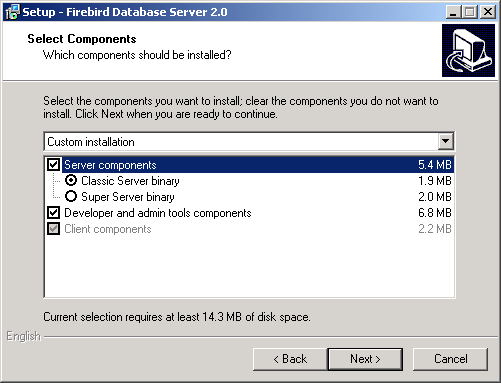 |
Choose the installation you want and hit the "Next" button to carry on responding to dialogs.
If you're installing a server, you should choose Superserver (preselected by the installer) or Classic (as seen in the image above). Leave “Server components” and “Developer and admin tools components” checked on.
For a client-only install, check off “Server components”, leaving “Client components” and, optionally, “Developer and admin tools components” checked on.
There is also a drop-down for a custom installation which new users can safely ignore.
The next screen of interest enables you to set up how you want the server to run.
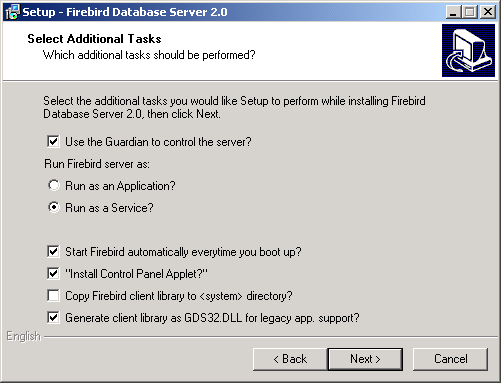 |
Choose the options you want, according to your choice of server model.
Guardian is a utility than can run "over the top" of Superserver and restart it, should it crash for any reason. If you chose the Classic server, the Guardian option should not appear. If it is there and is checked on, you must check it OFF.
For deployment of Superserver on Win9x, WinME and WinNT 4.0, which are unsupported platforms now for Firebird, using Guardian can avoid the situation where the server stops serving and nobody can find the DBA to restart it. The Guardian is otherwise more or less obsolete now since, on the supported Windows platforms, you can set the operating system to restart the service instead.
If you select to install Superserver or Classic, and your OS version supports services, you will be asked to choose whether to run Firebird as a service or as an application. Unless you have a compelling need to run the server as an application, choose service.
With the automatic option, Firebird will start up whenever you boot the host machine. With the manual option you can start the server on demand from the Services applet in the Settings/Control Panel/ Administration Tools selection.
If Superserver is being installed, you will see an option to “Install Control Panel applet?”. Unless your operating system is Vista, it might be handy to keep this as it places an applet in the Control Panel from which you can stop and [re]start the server.
Installing this applet on Vista has the potential to break your system's control panel altogether. If it appears on the installer screen display, make sure to check it OFF.
Eventually, the dialogs will stop, you will press “Install” and the server will either silently start the server (if you requested it) or prompt you for permission to reboot. Reboot will be signalled if the installer was unable to update a DLL due to its being already loaded when the installer started up.
By this point, if you elected to start the server, Firebird will be running and waiting for something to connect to it. Assuming you installed it as a service, you can visit the Services applet in your Administration Tools area to inspect its status. If you decide to inspect the property sheet for the service, you will see the name of the executable that the service is running, viz.
fbserver.exe if you installed Superserver
fb_inet_server.exe if you installed Classic
If you elected to use the Guardian with Superserver, you will see another service there, whose executable name is fbguard.exe. If you can see this service in combination with the Firebird Classic service, you should stop the Guardian service and run the instsvc.exe with the remove parameter to get rid of it (only the Guardian service).
That's all, folks!
If you want to perform some customisation of your Firebird server, you will find information about some tools and techniques at the end of this chapter.
This note refers to uninstalling a Firebird server that you installed using the Windows Installer kit. It hooks into the native Windows Add/Remove Programs database, which will not have an entry for the Firebird server if you installed from a zip kit (next section).
To prepare to uninstall Firebird, first shut down all connections to databases and then shut down the server. The Firebird uninstall routine (run from Add/Remove Programs in the Control Panel) preserves and renames the following key files:
preserves security2.fdb or renames it to security2.fbnnnn
preserves firebird.log
preserves firebird.conf or renames it to firebird.confnnnn
preserves aliases.conf or renames it to aliases.confnnnn
"nnnn" is the build number of the old installation.
No attempt is made to uninstall files that were not part of the original installation.
Shared files such as fbclient.dll and gds32.dll will be deleted if the share count indicates that no other application is using them.
The Registry keys that were created will be removed.
The installation of FB 2.1 is similiar in principle to previous versions but you need to pay attention to the preceding notes about the MS Visual C/C++ v.8 runtimes. Ensure that these libraries are appropriately installed before you begin.
That taken care of, the steps are as follows:
unzip the archive into a new directory
change the current directory to $FIREBIRD\bin (here and below, $FIREBIRD refers to the directory where the v.2.1 files are located)
run instreg.exe:
instreg.exe install
It causes the installation path of the directory above to be written into the registry (HKLM\Software\Firebird Project\Firebird Server\Instances\DefaultInstance)
if you want to register a service, also run instsvc.exe:
instsvc.exe install
optionally, you may need to run instclient.exe to copy fbclient.dll or a specially-generated clone as gds32.dll to the OS system directory
To install the CS engine, the only difference is the additional switch for instsvc.exe:
instsvc.exe install -classic
Notice that this means that you may have only one architecture of the engine—either fbserver.exe (Superserver) or fb_inet_server.exe (the parent process for Classic)—installed as a service.
The Control Panel applet is not installed with Classic—deliberately. Don't try to install and use it. The concept of “terminating” a service does not apply to the Classic model.
If you don't need a registered service, then you may avoid running both instreg.exe and instsvc.exe. In this case you should just unzip the archive into a separate directory and run the server as an application:
fbserver.exe -a
It should treat its parent directory, i.e., the one above \bin\, as the root directory in this case.
You should not delete the client libraries from <SYS> by hand as it
has the potential to render the shared library count inaccurate. The
instclient.exe utility was conceived primarily so that the
client library could be installed and removed from <SYS> while correctly
maintaining the shared library count.
To remove Firebird 2.1 without a Windows Uninstaller, proceed as follows:
stop the server
run "instreg.exe remove"
run "instsvc.exe remove"
run "instclient.exe remove fbclient.dll"
run "instclient.exe remove gds32.dll"
delete installation directory
The embedded server is a fully functional server linked as a dynamic library that is distributed with the name fbembed.dll. It has exactly the same features as the usual Superserver and its client part exports the standard Firebird API entrypoints.
The embedded server acts as a true local server for a single client accessing databases on a local machine. It can also act as a remote gateway that redirects all network calls to other hosts, just as the regular client library does.
Firebird Embedded for Windows comes only as a zip kit, since it is only a component of the embedded system that you will build around it. However, you should take care to unpack the kit in the structure under which it was packed, since many parts of an embedded setup rely on finding one another within that directory tree.
Any Firebird Registry entries are ignored. The root directory of the embedded server is the one where the embedded library binary (fbembed.dll, usually renamed to fbclient.dll) is located.
Client access can be only via the local (XNET) protocol, i.e. NOT a TCP/IP local loopback connection string that includes the server name “localhost” or the IP address 127.0.0.1. The embedded server supports only the local connect to an absolute database file path without a server name.
The client program gets exclusive access to the database file after successful connect. If another Firebird server already has a client attached to the database, the client program will be denied access. This is intentional.
The database MUST be on a local partition that is controlled by the machine that is hosting your embedded server and its surrounding application.
The security database (security2.fdb) is not used in connecting to the embedded server. Hence it is not required. Any user is able to attach to any database. Since both the server and the client run in the same address space, security becomes just an agreement between the accessor and the accessed, which can be easily compromised.
SQL privileges are still checked and enforced. Users that are assigned privileges in a Firebird database are not dependent on the existence of the user in the security database. Applications may still validly pass a user name in the database connection attributes and should do so, to make their user known to the database's access control list.
You may run any number of applications with the embedded server without any conflicts. Having a full Firebird or InterBase server running on the same machine is not a problem, either.
However, be aware that you cannot access a single database from a number of servers simultaneously, regardless of whether they be embedded or full servers. An embedded server has the SuperServer architecture and hence exclusively locks any database it attaches to. This is intentional.
For v.2.1.x the MS runtime libraries msvcp80.dll and msvcr80.dll must be available in the embedded library's path. You can extract copies of these libraries from the zip kit version of the full Firebird build if they are not already present on your system.
If you have skipped over the earlier notes concerning the MCVC8 runtime libraries, it is recommended that you review them now.
Just copy fbembed.dll, icudt30.dll, icuin30.dll and icuuc30.dll into the directory with your application exectable.
You should also copy firebird.msg and firebird.conf (if necessary) to the same directory.
You will need firebird.conf only if it is necessary to set some non-default configuration parameter for the embedded server.
If external libraries are required for your application, such as INTL support (fbintl.dll and fbintl.conf) or UDF libraries, create subdirectories beneath the application root for them, emulating the Firebird server ones, e.g. /intl or /udf, respectively.
Rename fbembed.dll to either fbclient.dll or gds32.dll, according to which is required by your database connectivity software.
Now start your application and it will use the embedded server as a both a client library and a server and will be able to access local datasases via the XNET network emulation protocol.
  c:\my_app\app.exe
  c:\my_app\gds32.dll
  c:\my_app\ib_util.dll
  c:\my_app\icudt30.dll
  c:\my_app\icuin30.dll
  c:\my_app\icuuc30.dll
  c:\my_app\firebird.conf
  c:\my_app\firebird.msg
  c:\my_app\intl\fbintl.dll
  c:\my_app\intl\fbintl.conf
  c:\my_app\udf\fbudf.dll
Suppose you want to place the Firebird files (excluding the renamed fbembed.dll) in another directory. In that case, you need to modify your firebird.conf and set RootDirectory to the Firebird directory tree that is parent to the Firebird files.
Example
  c:\my_app\app.exe
  c:\my_app\gds32.dll
  c:\my_app\ib_util.dll
  c:\my_app\icudt30.dll
  c:\my_app\icuin30.dll
  c:\my_app\icuuc30.dll
  c:\my_app\firebird.conf
  d:\fb\firebird.msg
  d:\fb\intl\fbintl.dll
  d:\fb\intl\fbintl.conf
  d:\fb\udf\fbudf.dll
In firebird.conf:
RootDirectory = d:\fb
In the past, it was assumed that just copying fbclient.dll and the runtimes to the system directory was enough to get a remote client set up to connect to Firebird. It worked for some situations, i.e., where the presence of the C/C++ runtimes was normal and the location was standard.
Now, with Firebird 2.1 and higher and the more pervasive changes in the Microsoft platform rules, more care must be taken.
The option to use the client-only install option in the binary installer kit might be the better approach to take if you are not too concerned about a private assembly. It will take care of writing a Registry entry to inform the system where to look for components that applications might need and of locating them in the correct relative locations; it can also be set to write a "Borland-compatible" client dll and, optionally, give it the legacy name 'gds32.dll'.
Each release of the client library contains the compiled message text corresponding to exception codes that its matching Firebird server returns to the client application via the Error Status array. When the client application is using the correct version of fbclient.dll, the client does not need a local copy of firebird.msg.
However, the client library does not contain any text for error messages output to the console by the Firebird command-line utilities distributed with the releases (gbak, isql, etc.). The texts for those messages live only in firebird.msg. If any of those utilities is to be used from a client, a local copy of firebird.msg is required. The symptom of a missing, wrongly placed or outdated firebird.msg file on a client that needs it is an error message of the kind "Cannot format message.."
A number of tools and tricks are available for certain kinds of customisation you might want to make in your installation. Separate documentation is provided for most of these tools, in the form of text files in your installation's \doc\ folder.
Note also that most of these tools have skeleton help available simply by running the executable concerned -help or -? arguments. It doesn't matter which you use: both are invalid, prompting the executable to display all its valid ones.
Firebird can be made more secure on a Windows system if it is run as a service with its own user name. If you want to make use of the secure login feature, create a “firebird service user” on the system with any name and password you like. It must have the privileges for a normal user.
More information is in the document named README.instsvc.txt. If you
have a zip kit, you will find it in the /doc/ directory of the zipfile's root. If you don't have
a zip kit available, the file won't be available until after the installation. You can read the
same document at
this URL.
Firebird 2.1 makes it a little easier to run multiple servers simultaneously. However the
second and subsequent servers must be installed manually. You can read more about this in the file
install_windows_manually.txt available in the doc directory after installation,
or it can be found at
this URL.
The detailed description in Chapter 9 of the Firebird 1.5.x release notes, for configuring an alternative service port and accessing from applications, still holds for the Fb 2.x releases and is essential reading if you plan to have more than one server running.
Traditionally, local applications that use InterBase or Firebird have expected to load the gds32.dll client library from the system directory. Firebird 2.x versions ship with a tool named 'instclient.exe' that can install a clone of fbclient.dll to the Windows System directory. This clone gets patched on the fly so that its file version information begins with "6.3", to provide compatibility for old applications that check the GDS32.DLL file version and can not make sense of a number string such as "2.0".
This 'instclient.exe' tool can also install the FBCLIENT.DLL itself in the Windows system directory, if required. This will take care of tools or applications that need to load it from there, on clients where the operating system still permits user DLLs to load from the system directory.
The instclient.exe utility should be located in the 'bin' directory of your Firebird installation and must be run from there in a command shell.
Usage of instclient.exe:
  instclient i[nstall] [ -f[orce] ] library
             q[uery] library
             r[emove] library
where library is: fbclient | gds32
'-z' can be used with any other option, prints version.
Version information and shared library counts are handled automatically. You
may provide the -f[orce] option to override version checks.
If you -f[orce] the installation, it could break another
Firebird or InterBase® version already installed. You might have to reboot the machine
in order to finalize the copy.
For more details, see the document README.Win32LibraryInstallation.txt which is located in ..\doc.
In this section we have special topics that provide extra detail about new or changed features affecting your installation of Firebird on Windows.
Applies from V.2.1.2 Onward
Firebird 2.1 is built by the Microsoft MSVC8 compiler in Visual Studio 2005. Because all the Firebird binaries are built to use dynamic linking, they all require run-time libraries.
To avoid the dll-hell issue Microsoft introduced new rules for the distribution of components
that may be shared by multiple applications. From Windows XP forward, shared libraries—such
as the Visual C++ and Visual C runtimes msvcp80.dll,
msvcr80.dll and mscvcm80.dll—must be distributed as
shared or as private assemblies.
The Microsoft MSI Installer installs shared assemblies into the common special
folder SxS for use by multiple applications.
Private assemblies are distributed with applications and should be put into the
application folder. Use of the \system32 folder for assemblies is
now prohibited on the XP, Server2003 and Vista platform families.
To install the runtimes as a shared assembly, the deployment system must have MSI 3.0 installed and the user must have administrative privileges. Often, this is not possible with an application being deployed with Firebird Embedded: it must be installed ready-to-run. In that case, do not plan to install the runtimes as a shared assembly.
To install the MSVC8 run-time libraries as a private assembly its contents—the
three DLLs mentioned above and the assembly's manifest file, Microsoft
VC80.CRT.manifest—must be put into every folder where a dependent binary
(.exe or .dll) resides, because of built-in checks for the folders that are the expected
location of the runtimes that are equivalent to the compile-time libraries that were used.
A typical installation of Firebird Embedded would thus require three complete copies of the MSVC8 run-time assembly: one in the application folder and one each into the \intl and \udf folders. To avoid the issue of bloating the installation, some changes were done for V.2.1.2 in the way some of the Firebird binaries are built. (See also Tracker entry CORE-2243).
These are the changes that enable Firebird Embedded to work even if the application structure does not incorporate the MSVC8 runtime assembly:
The libraries ib_util.dll, fbudf.dll, ib_udf.dll, fbintl.dll are built without any embedded manifest. The effect is to avoid having the loader search for a MSVC8 assembly in the same folder as corresponding DLL. For this to work, the host process must have already loaded the MSVC8 run-time via manifest before any attempt is made to load these secondary DLL's.
fbembed.dll now has code to create and activate the activation context from its own manifest before loading any secondary DLL that might be required.
It is highly recommended to use the Microsoft redistribution package to install the MSVC8 run-time! The executable installer
vcredist_x86.exe or vcredist_x64.exe (as appropriate to your kit selection) should be present in the zip kits for the full installation and the Embedded version.
If not, it can be downloaded from the Microsoft download site.
Third party UDFs must satisfy one of the following requirements if a MSVC8 run-time assembly is installed as private assembly. When compiling the UDF library, the MSVC8 runtime EITHER:
is NOT used
is used but the build is done without the embedded manifest
is used and the build is done with the embedded manifest—the default option in the MSVC IDE. In this case the MSVC8 assembly must be in the same folder as the UDF library
Over the years, various Windows issues that affect Firebird have been noted. They are listed here as being of possible interest when things seem to go not so well.
Firebird requires WinSock2. All Win32 platforms should have this, except for Win95. A test for the Winsock2 library is made during install. If it is not found the install will fail. To find out how to go about upgrading, visit this link.
Windows XP (Home and Professional editions), Server 2003 and ME have a feature called System Restore, that causes auto-updating (backup caching?) of all files on the system having a ".gdb" suffix. The effect is to slow down access to Firebird databases having that suffix to a virtual standstill as the files are backed up every time an I/O operation occurs. (On XP and Server 2003 .NET Servers, there is no System Restore).
A file in the Windows directory of ME, c:\windows\system\filelist.xml, contains "protected file types". ".gdb" is named there. Charlie Caro, an InterBase developer, originally recommended deleting the GDB extension from the "includes" section of this file. However, it was later demonstrated that WinME rebuilds this list. In XP, it is not possible to edit filelist.xml at all.
On ME, the permanent workarounds suggested are one of:
use FDB (Firebird DB) as the extension for your primary database files--RECOMMENDED
move databases to C:\My Documents, which is ignored by System Restore
switch off System Restore entirely (consult Windows doc for instructions).
On Windows XP and Server 2003 you can move your databases to a separate partition and set System Restore to exclude that volume.
Windows XP uses smart copy, so the overhead seen in Windows ME may be less of an issue on XP, for smaller files at least. For larger files (e.g. Firebird database files, natch!) there doesn't seem to be a better answer as long as you have ".gdb" files located in the general filesystem.
Table of Contents
Please read the first two chapters before you set out to install Firebird 2.0.x or 2.1.x.
The Firebird server comes in two forms, Classic, which runs as a service, and SuperServer, which runs as a background daemon. Classic is the more traditional UNIX service, while Superserver uses threads, rather than processes. For the user just starting out with Firebird, either will do, although the Classic server is likely to prove a better platform for initially experimenting with Firebird.
You will need to be root user to install Firebird.
Do not try to use rpm --update to bring any existing Firebird package installation up to date. The Firebird packages do not support it.
If you are installing Superserver on a Linux that supports the “new POSIX threading library ” (NPTL) then choose the NPTL build of Firebird. Most distros with the 2.6 kernel are built with NPTL enabled; some with later 2.4 kernels also enabled it, but it may be wise to prepare to revert to the regular build and set up to export the LD_ASSUME_KERNEL=2.2.5 variable if the 2.4 implementation of the NPTL causes problems. Details for doing this follow below.
64-bit builds are available for both Classic and Superserver. These should be installed only on a 64-bit Linux system. NPTL support is native on 64-bit Linux.
Installation on Linuxen requires a glibc package installed that is
equal to or greater than glibc-2.2.5. However, to enable support for some
older distros, the generic binaries are built in a compiler environment that
will ensure compatibility with the v.2.2.5 kernel. For this reason, the runtime
library libstdc++.so.5 must be present in your system before
you attempt to install Firebird.
There are various ways to achieve it, as follows:
by installing a compat-glibc package (RedHat,
CentOs, OpenSuse, Debian) or a libstdc++5 package
(Mandriva)
by using a Firebird rpm (or other, appropriate package type) provided by your distro instead of the generic one provided by the Firebird Project
by compiling Firebird yourself, on the same system that you are going to run it on!
If the NPTL causes problems for SuperServer and locally compiled programs, including utilities such as gbak throwing a Broken Pipe error, you can try to solve the problem by forcing Linux to use the old threading model.
To fix.-
In /etc/init.d/firebird
  LD_ASSUME_KERNEL=2.2.5
  export LD_ASSUME_KERNEL
That takes care of the server instance.
You need to have the LD_ASSUME_KERNEL environment
variable set up within the local environment as well, so add the following to
/etc/profile, to ensure every user picks it up for the command line utilities.
after
HISTSIZE=1000
add
LD_ASSUME_KERNEL=2.2.5
On the following line, export it (this is all in one line):
 export PATH USER LOGNAME MAIL HOSTNAME
     HISTSIZE INPUT_RC LD_ASSUME_KERNEL
The following instructions describe the Classic installation. For
installation of Superserver the "CS" in the package name is replaced by
"SS". For example, the package FirebirdCS-2.1.n-nnnnn.i686.rpm
is replaced by FirebirdSS-2.1.n-nnnnn.i686.rpm.
For those who, in the past, have had trouble installing Firebird on Slackware, the good news is that the installers in this version do include Slackware support.
Log in as root, or open a root shell. In the example filenames, replace nnnnn with the build number of the kit you actually have.
The Linux install scripts will
Attempt to stop any currently running server
Add the user 'firebird' and the group 'firebird' if they do not already exist.
Install the software into the directory /opt/firebird and create links for libraries in /usr/lib and header files in /usr/include
Automatically add gds_db for port 3050 to /etc/services if the entry does not already exist
Automatically add localhost.localdomain and HOSTNAME to /etc/gds_hosts.equiv
SuperServer only installs a /etc/rc.d/init.d/firebird server start script.
Classic server installs a /etc/xinetd.d/firebird start script or, for older inetd systems, adds an entry to the /etc/inetd file
Specific to SuSE, a new rcfirebird link is created in /usr/bin for the init.d script and an /etc/rc.config Firebird entry is created.
Starts the server/service. Firebird should start automatically in runlevel 2, 3 or 5
Generates and sets a new random SYSDBA password and stores it in the file /opt/firebird/SYSDBA.password.
Adds an entry to aliases.conf for the sample database, employee.fdb.
In a shell:
 $cd /opt/firebird/bin
 $./isql -user sysdba -password <password>1

 SQL>connect localhost:employee.fdb /* this is an aliased path */

 SQL>select * from sales;
 SQL>select rdb$relation_name from rdb$relations;
 SQL>help;

 SQL>quit;
1A password has been generated for you on installation. It can be obtained from the /opt/firebird/SYSDBA.password file, located in the Firebird root directory.
The Firebird server runs by default as the user 'firebird'. While this has always been the recommended configuration, the previous default was for the server to run as 'root' user. When running as root user, the server had quite wide-ranging ability to read, create and delete database files anywhere on the POSIX filesystem.
For security reasons, the service should have a more limited ability to read/delete and create files.
While the new configuration is better from a security perspective, it requires some special considerations to be taken into account for creating new databases:
the user 'firebird' has to have write permission to the directory in which you want to create the database.
the recommended value of the DatabaseAccess attribute in the /opt/firebird/firebird.conf file should be set to None, to permit access only through entries in the aliases.conf file.
use entries in aliases.conf to abstract users from the physical locations of databases.
Procedures for creating a new database can vary with different configurations but the following configuration and steps are recommended:
If a directory that is owned by the user 'firebird' does not exist, then change to root user and create the directory:
 $su - root
 $mkdir -p /var/firebird
 $chown firebird:firebird /var/firebird
Create a new physical database and set up an alias entry to point to it. As root or firebird user, run the following script:
 $cd /opt/firebird/bin
 $./createAliasDB.sh test.fdb /var/firebird/test.fdb
(Usage is: createAliasDB.sh <dbname> <pathtodb>)
As an alternative (for step 2) the steps in the createAliasDB.sh script can be performed manually by:
$vi /opt/firebird/aliases.conf
and add the line at the end of the file:
test.fdb /var/firebird/test.fdb
Then create the database:
$/opt/firebird/bin/isql -u sysdba -p <password>
SQL>create database 'localhost:test.fdb';
SQL>quit;
If the DatabaseAccess value in /opt/firebird/firebird.conf is set to Full or a restricted path value (for example: DatabaseAccess=/var/firebird) another alternative to step 2 is to create the physical database file directly, using the absolute path with the filename:
 $/opt/firebird/bin/isql -u sysdba -p <password>
 SQL>create database '/var/firebird/test.fdb';
 SQL>quit;
If you use this configuration, the database file can also be directly accessed without an entry in the aliases file:
$/opt/firebird/bin/isql -u sysdba -p <password>
SQL>connect '/var/firebird/test.fdb';
SQL>quit;
In addition to the standard install files the following scripts are provided in the bin directory of this release.-
changeDBAPassword.shChange the Firebird SYSDBA user password. For Superserver, this script will change the init script /etc/rc.d/init.d/firebird to use the new password as well.
createAliasDB.shUsage: createAliasDB.sh <dbname> <dbpath>
This script creates a new physical database and adds an entry in the aliases.conf file.
fb_configA script that can be used in makefiles to generate the required include paths
and lib include directives for the installed version of Firebird.
fb_config -help will give a complete list of options.
changeGdsLibraryCompatibleLink.shClassic only-Change the client library link for libgds.so between the multithreaded libfbclient.so and the single threaded libfbembed.so library that allows an embedded direct open of the db file. For compatibility with previous installs, libgds.so by default points to libfbembed.so.
The Classic install offers an "embedded" mode of access that allows programs to open database files directly. To operate in this mode, a database-enabled user requires privileged access to some of the Firebird configuration and status files.
Now that it is the 'firebird' user (not root) that is the default user to run the software, you need to know how to get a user into the firebird group to enable direct access to databases. It is documented in the readme notes, but the following steps should get you where you need to be.
To add a user (e.g. skywalker) to the firebird group, the root user needs to do:
$ usermod -a -G firebird skywalker
Next time 'skywalker' logs on, he can start working with firebird databases.
To list the groups that a user belongs to, type the following at the command line:
$ groups
On OpenSuse 11.1 it appears the upper case -A switch (not lower case -a) is used to append a group to the groups list that the user belongs to.
We're not attempting to give you a tutorial on Linux shell syntax here. Always consult the documentation for your own OS platform and version to check the latest idioms of its syntax.
If you need to uninstall, do it as root user. The following examples use Classic server but the same holds true for SuperServer by replacing the CS with SS.
Installation on MacOSX is extremely simple:
As SU, download the compressed pkg kit to a convenient location and decompress it
Click on the pkg file to kick off the installation.
Follow the instructions (choose disk, enter SU password) and you are done.
MacOSX has no uninstall utility but the following script will clean up Firebird installs on Leopard. It should work on Tiger as well.
#!/bin/sh
echo "Clean Services"
echo "Clean User"
dscl localhost -delete /Local/Default/Users/firebird
echo "Clean Group"
dscl localhost -delete /Local/Default/Groups/firebird
if [ -f "/Library/StartupItems/Firebird" ]; then
echo "Remove SuperServer StartupItem"
rm -fr /Library/StartupItems/Firebird
fi
if [ -f "/Library/LaunchDaemons/org.firebird.gds.plist" ]; then
echo "Remove Launchd"
launchctl unload /Library/LaunchDaemons/org.firebird.gds.plist
rm /Library/LaunchDaemons/org.firebird.gds.plist
fi
echo "Remove Framework"
rm -fr /Library/Frameworks/Firebird.framework
echo "Remove Receipt"
rm -fr /Library/Receipts/Firebird*.pkg
| Firebird Documentation Index | Firebird Home |